pop pop studio
    • Belong Whole-school support for teachers and SENCOs
    • Placid A Local Offer platform built with your communities
    • Bearings Your SEND local offer, audited for you
    • Chorus Websites for parent carer forums
    • Spoke Free, self-serve SEND Local Offer planning tool
    • Dawn Plain English is for everyone
    • Library Every SEND document, article and blog post to search, and Ask Ai.
    • Ask Ai Research and citation assistant for SEND
    • Survey One question, every plan, side by side
    • Every Free directories
    • Building an AI search interface A step by step build of an AI search interface
  • Learn
  • Help
  • Contact
  • Log in
  1. Home /
  2. Help /
  3. IMP /
  4. Using the category browser

Using the category browser

For SENCO and setting For IAT team

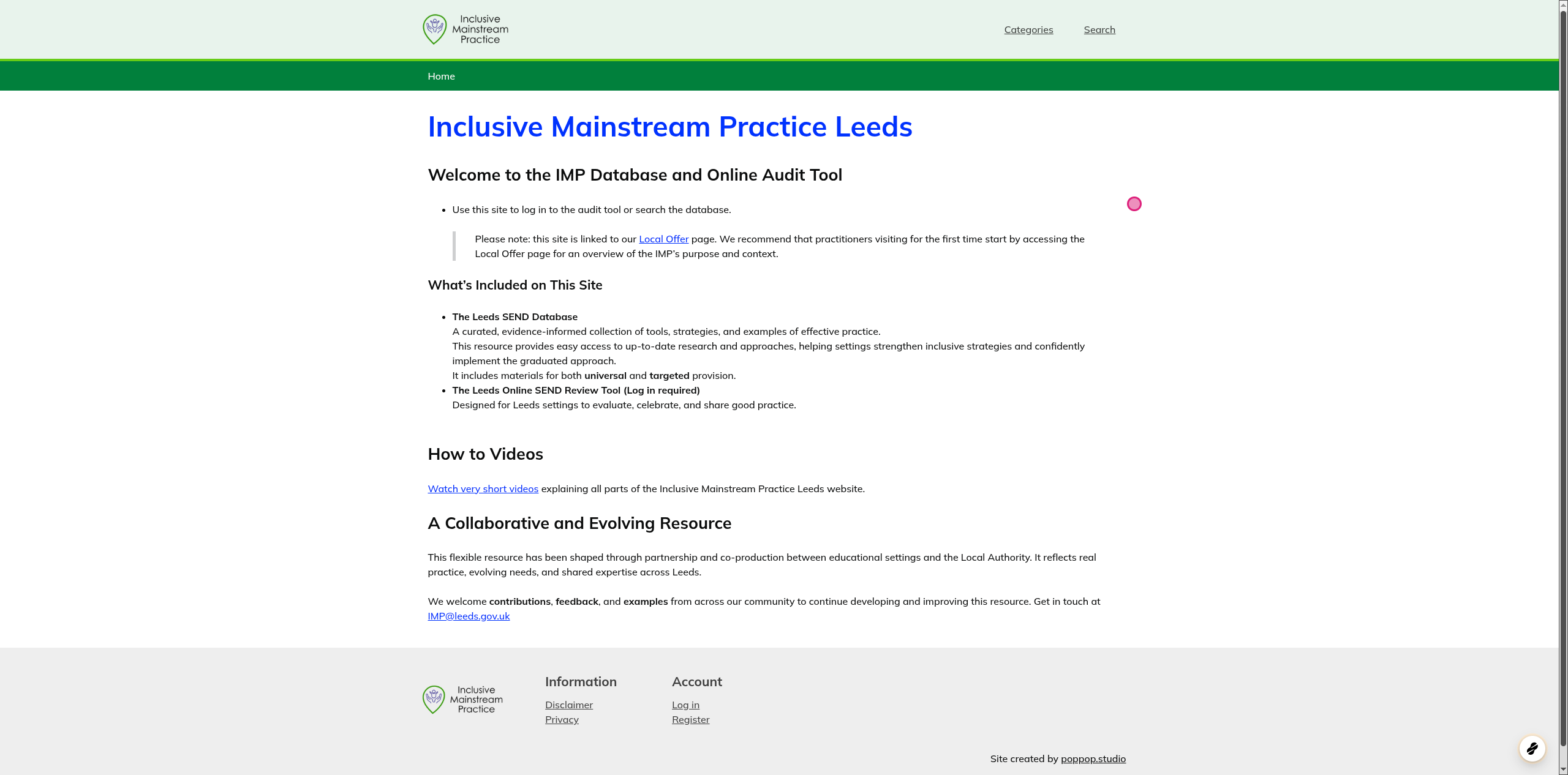
1. Go to Inclusive Mainstream Practice Leeds | IMP

Screenshot of step 1, go to Inclusive Mainstream Practice Leeds | IMP

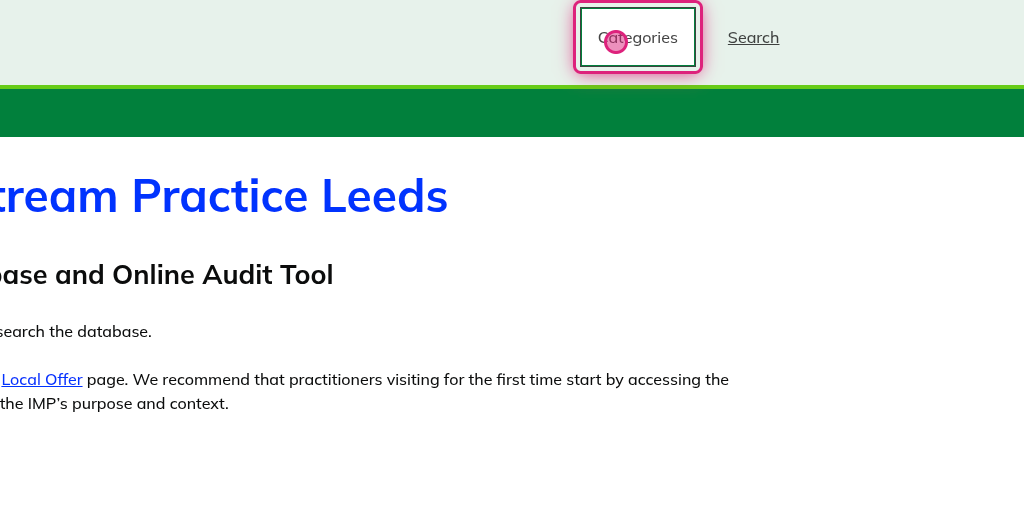
2. Click on Categories

Screenshot of step 2, click on Categories

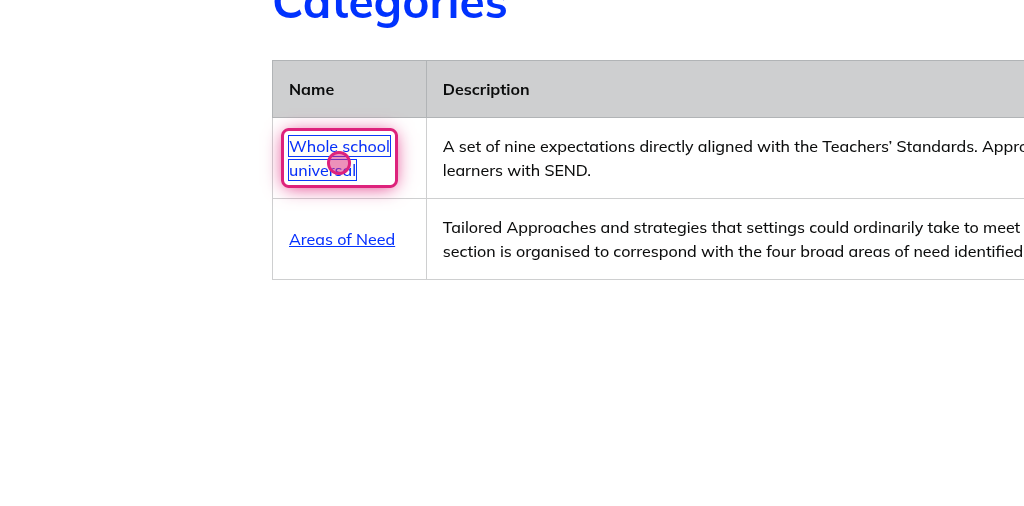
3. Click on Whole school universal

Screenshot of step 3, click on Whole school universal

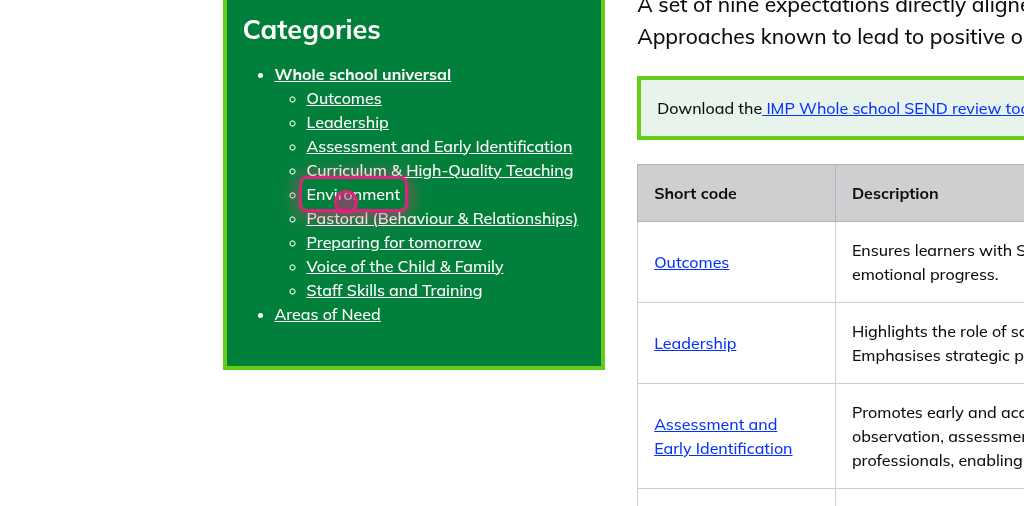
4. Click on Environment

Screenshot of step 4, click on Environment

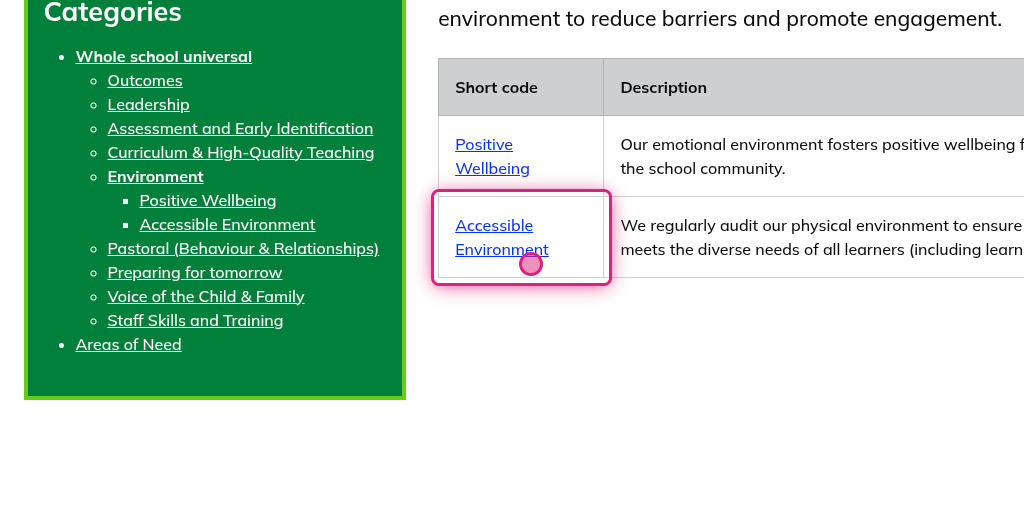
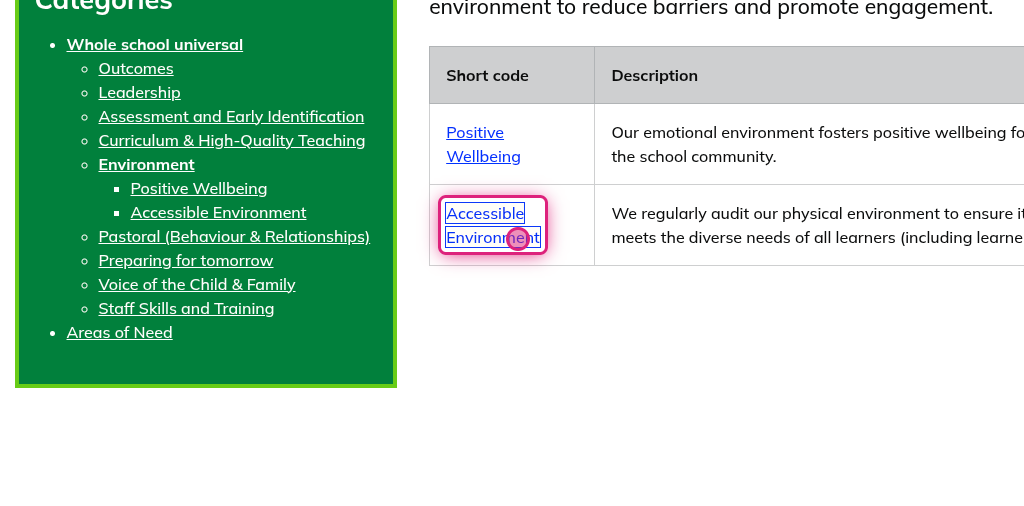
5. Click on Accessible Environment

Screenshot of step 5, click on Accessible Environment

6. Click on Accessible Environment

Screenshot of step 6, click on Accessible Environment

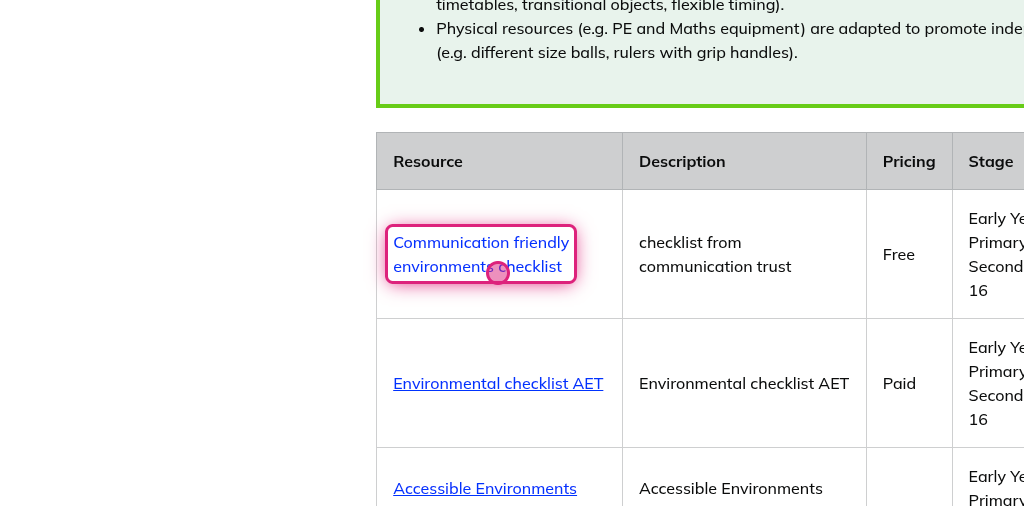
7. Click on Communication friendly environments checklist

Screenshot of step 7, click on Communication friendly environments checklist

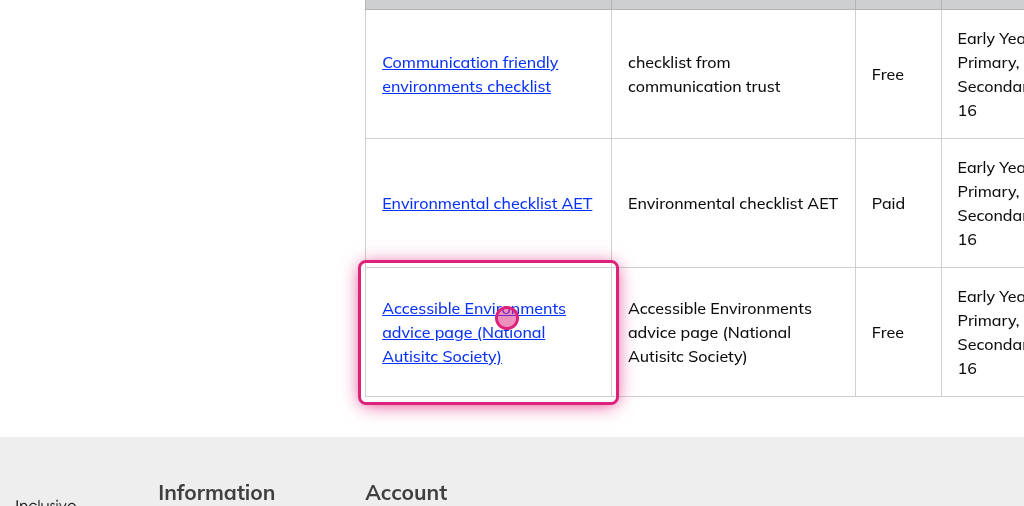
8. Click on Accessible Environments advice page (National Autisitc Society)

Screenshot of step 8, click on Accessible Environments advice page (National Autisitc Society)

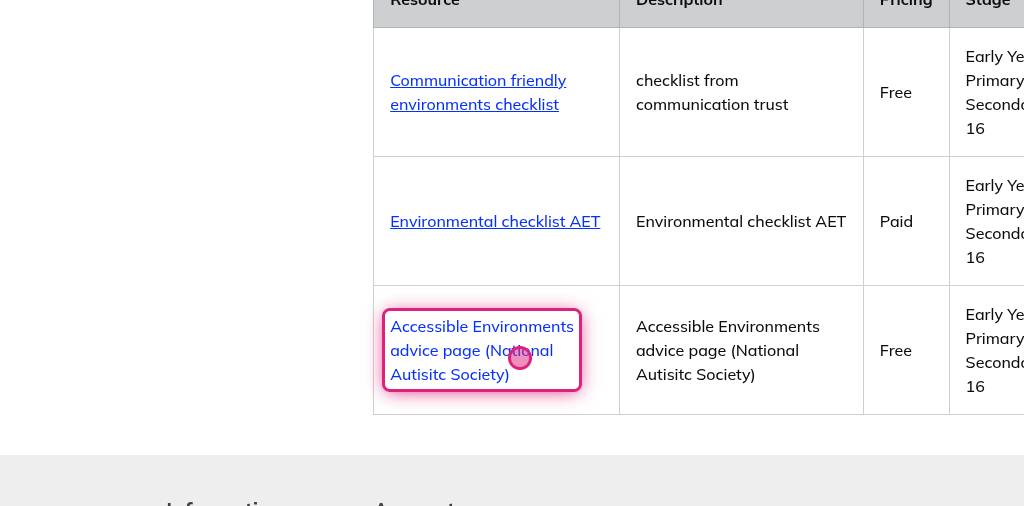
9. Click on Accessible Environments advice page (National Autisitc Society)

Screenshot of step 9, click on Accessible Environments advice page (National Autisitc Society)

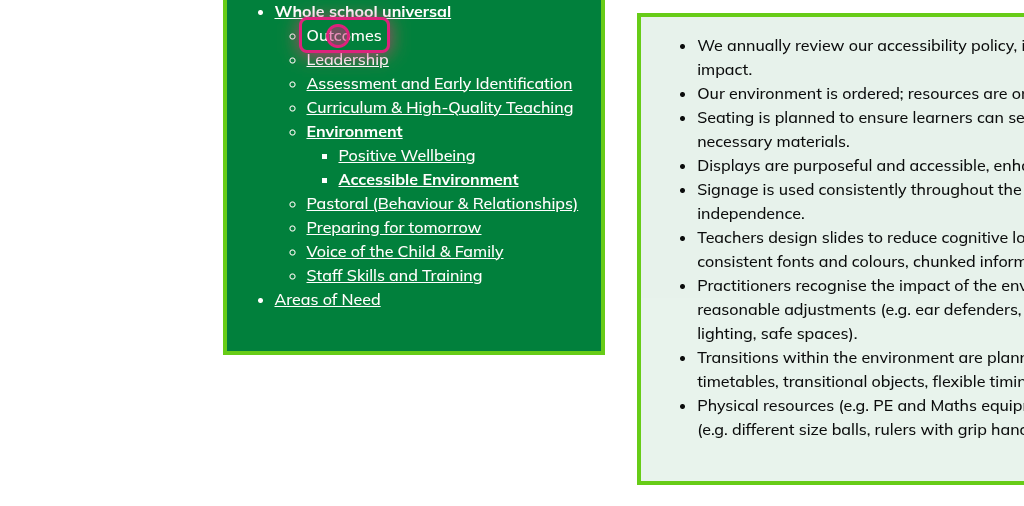
10. Click on Outcomes

Screenshot of step 10, click on Outcomes

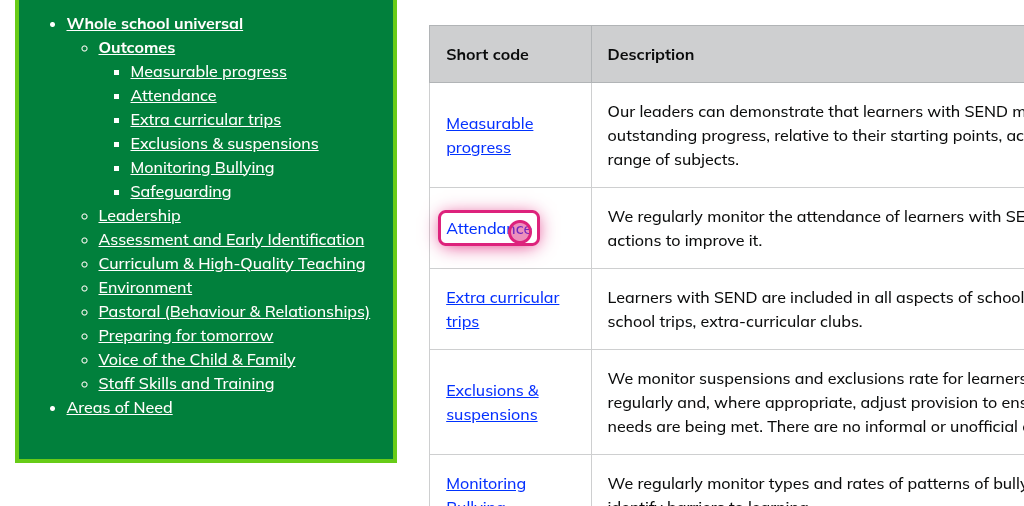
11. Click on Attendance

Screenshot of step 11, click on Attendance

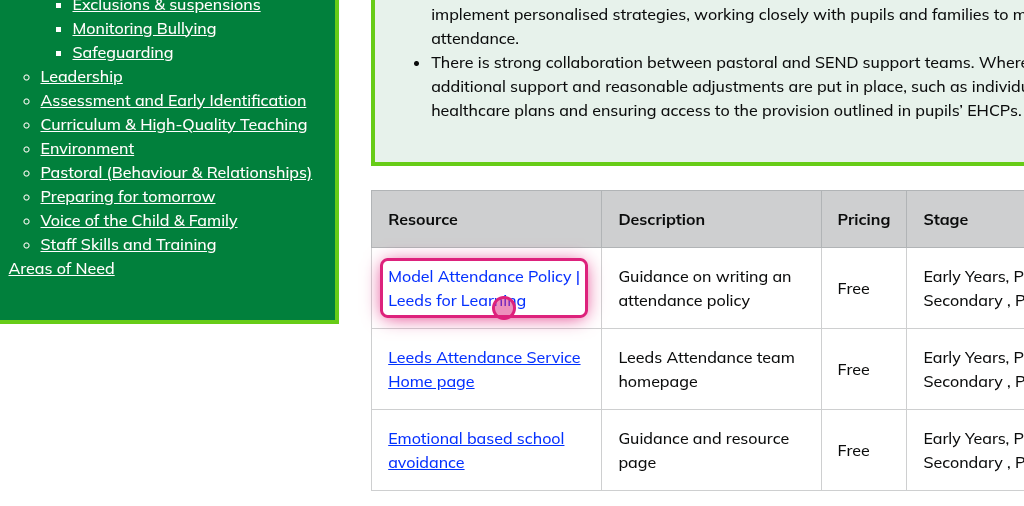
12. Click on Model Attendance Policy | Leeds for Learning

Screenshot of step 12, click on Model Attendance Policy | Leeds for Learning

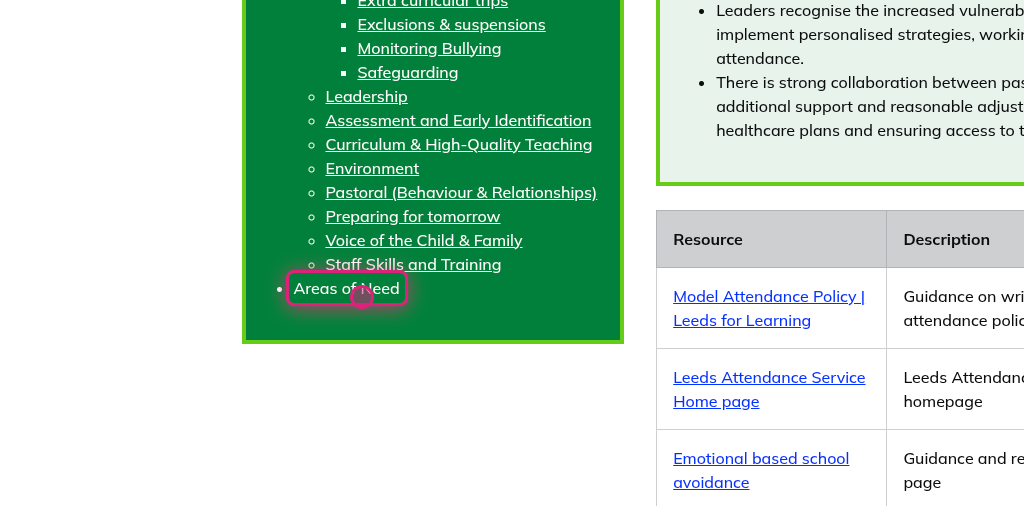
13. Click on Areas of Need

Screenshot of step 13, click on Areas of Need

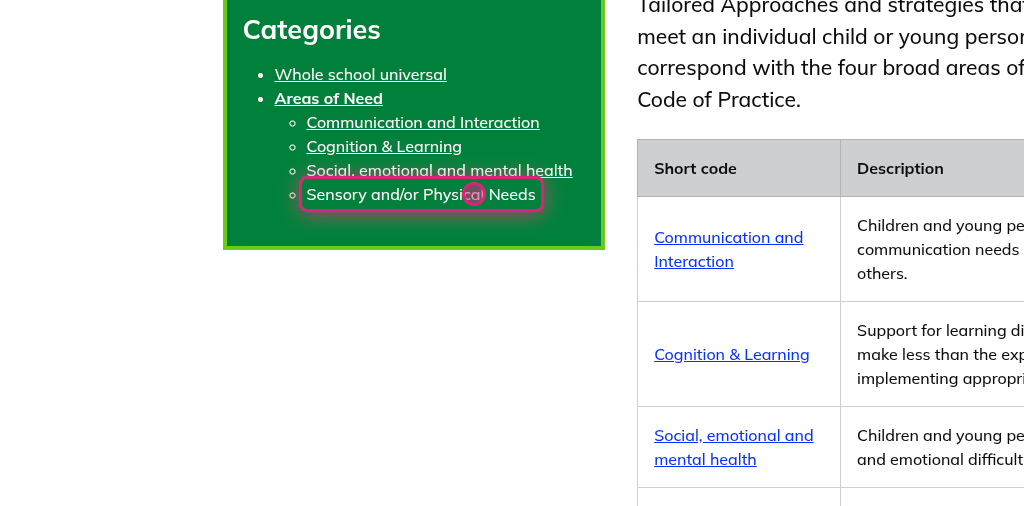
14. Click on Sensory and/or Physical Needs

Screenshot of step 14, click on Sensory and/or Physical Needs

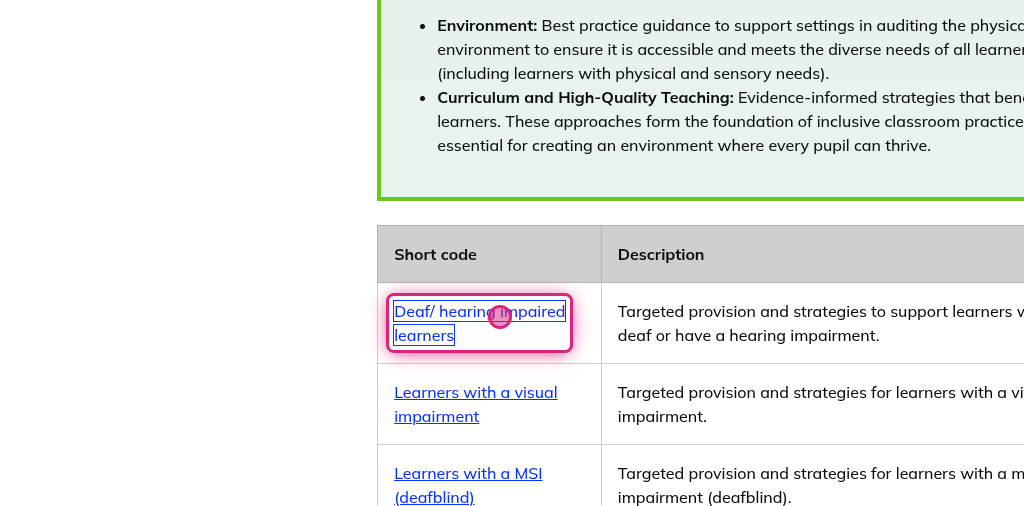
15. Click on Deaf/ hearing impaired learners

Screenshot of step 15, click on Deaf/ hearing impaired learners

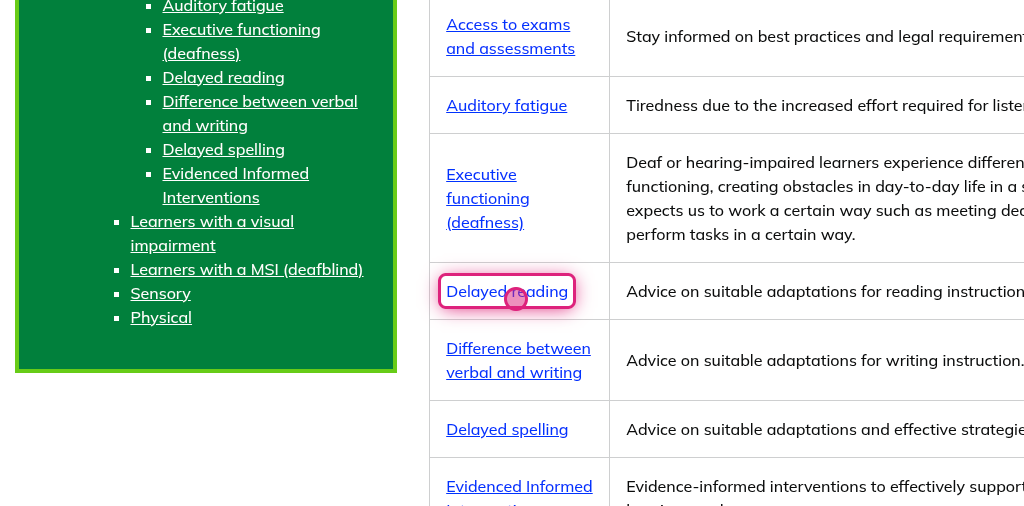
16. Click on Delayed reading

Screenshot of step 16, click on Delayed reading

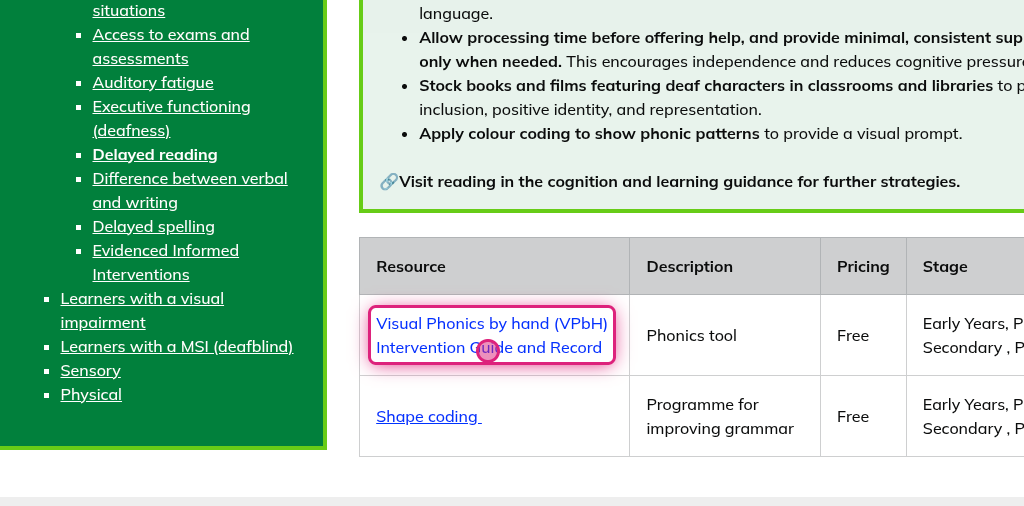
17. Click on Visual Phonics by hand (VPbH) Intervention Guide and Record

Screenshot of step 17, click on Visual Phonics by hand (VPbH) Intervention Guide and Record

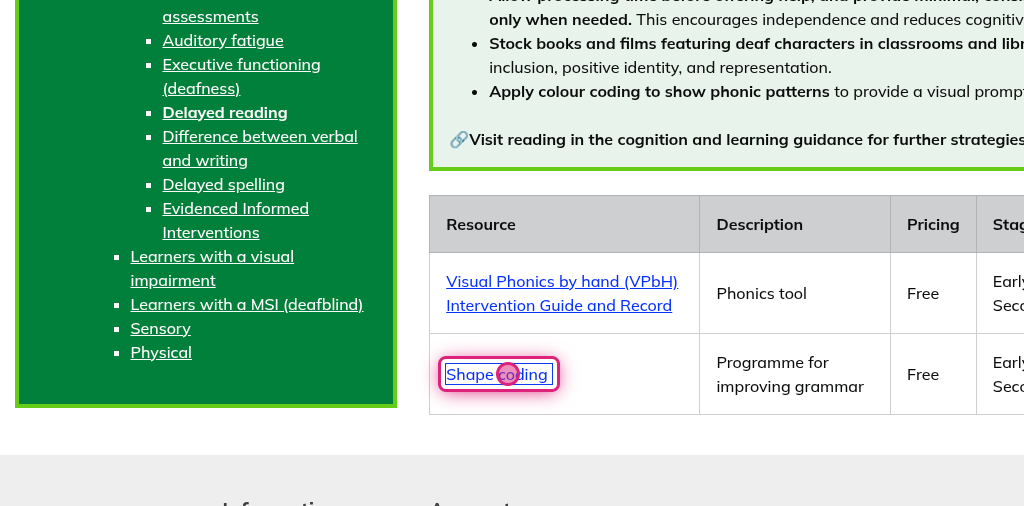
18. Click on Shape coding

Screenshot of step 18, click on Shape coding

Can't find what you need?

Contact support and we'll get back to you.

Contact support →
Products

  • Belong
  • Placid
  • Bearings
  • Chorus

Tools

  • Spoke
  • Dawn
  • Library
  • Ask Ai
  • Survey
  • Every
  • Building an AI search interface

Learn

  • Learn hub
  • Engagement
  • Blog
  • Newsletter
  • Events
  • Case studies

Company

  • About
  • Principles
  • Procurement
  • For SEND consultants
  • Help
  • Support
  • Contact

Talk to us

  • Book a chat with Jonny (opens in a new tab)
  • Office hours, Tuesdays 10am (opens in a new tab)
  • LinkedIn (opens in a new tab)
  • Bluesky (opens in a new tab)

© 2018 to 2026 poppop studio

All rights reserved

Legal

  • Terms of service
  • Privacy
  • Net zero
  • Accessibility
  • Social value
  • AI Statement